Positioning
PowerShell is not merely a scripting language for me -- it is the connective tissue between SQL Server administration, Azure cloud operations, and DevOps practices. I have been building on this technology since its early Windows PowerShell days, consistently deepening it and applying it in client engagements. What makes PowerShell compelling is the combination of deep OS integration, outstanding modules for SQL Server (dbatools) and Azure (Az), an object-oriented pipeline, and the ability to embed scripts directly into CI/CD systems. These properties make PowerShell the ideal language for eliminating repetitive tasks and implementing infrastructure as code.
Across projects at a public research organisation, a savings bank, a textile and service provider, and an industrial machinery manufacturer, I have used PowerShell as the core of the automation layer: for SSDT deployment, for Excel reports from Data Warehouse data, for Azure configuration, and for YAML-driven CI/CD pipelines. The breadth of these use cases demonstrates that PowerShell is not a niche tool but a universal instrument relevant in every data-driven enterprise environment.
Why is PowerShell automation in such high demand today? Three drivers work together: first, server estates and cloud infrastructure grow faster than manual administration can scale. Second, regulatory requirements and audits demand traceable, logged changes that manual click sequences cannot deliver. Third, automated deployment pipelines significantly shorten the time-to-market for database schema changes while simultaneously reducing the risk of human error when applying updates. Addressing all three creates a measurable competitive advantage.
PowerShell Fundamentals in DBA/DevOps Context
PowerShell differs fundamentally from classical shell languages: instead of plain text streams, the pipeline processes .NET objects. This has far-reaching consequences for script development. When Invoke-Sqlcmd returns a result set from a SQL Server query, you work with typed objects whose properties are directly addressable -- no regex on text output required. When you use dbatools cmdlets, you receive fully documented objects that can be piped, filtered, aggregated, and fed into other systems seamlessly. This object-oriented foundation makes PowerShell code substantially more robust and maintainable than equivalent batch or shell scripts.
Modules, Versioning, and Cross-Platform
PowerShell 7 (PowerShell Core) runs cross-platform on Windows, Linux, and macOS. For pure SQL Server and Azure automation on Windows servers, Windows PowerShell 5.1 remains relevant because certain modules and COM-interop scenarios still depend on it. I use the appropriate version for each environment and ensure modules are pinned to defined versions (#Requires -Modules) to prevent compatibility issues in automated runs.
Module Structure and Reusability
Good PowerShell scripts are not monolithic text files but structured modules with clear functions, parameter blocks, and comment-based help. I develop automation scripts with CmdletBinding, Param blocks, and standardised return types so they can embed into pipelines, CI/CD systems, and scheduled tasks without code modifications. Parameter validation via [ValidateSet], [ValidateNotNullOrEmpty], and [ValidateRange] makes scripts safer and self-documenting.
Error Handling with try/catch and ErrorAction
One of the most common weaknesses in amateur automation scripts is absent error handling. A script that silently aborts on a connection error and reports a partial success as a full success is more dangerous than no script at all. I consistently use try/catch blocks, ErrorAction Stop for cmdlets, and trap handlers for unexpected exceptions, combined with a structured logging framework that records errors with timestamp, context, and severity level. This creates a reliable audit trail that immediately explains what happened, where, and why when something goes wrong.
- PowerShell 5.1 (Windows) and PowerShell 7+ (cross-platform) expertise
- Object-oriented pipeline: typed objects, no text parsing
- Module structure: CmdletBinding, Param, comment-based help, ValidateSet
- Fault-tolerant design: try/catch, ErrorAction Stop, structured logging
- Version-controlled code management in Git: branches, tags, pull requests
- Signed scripts and execution policy for secure production environments
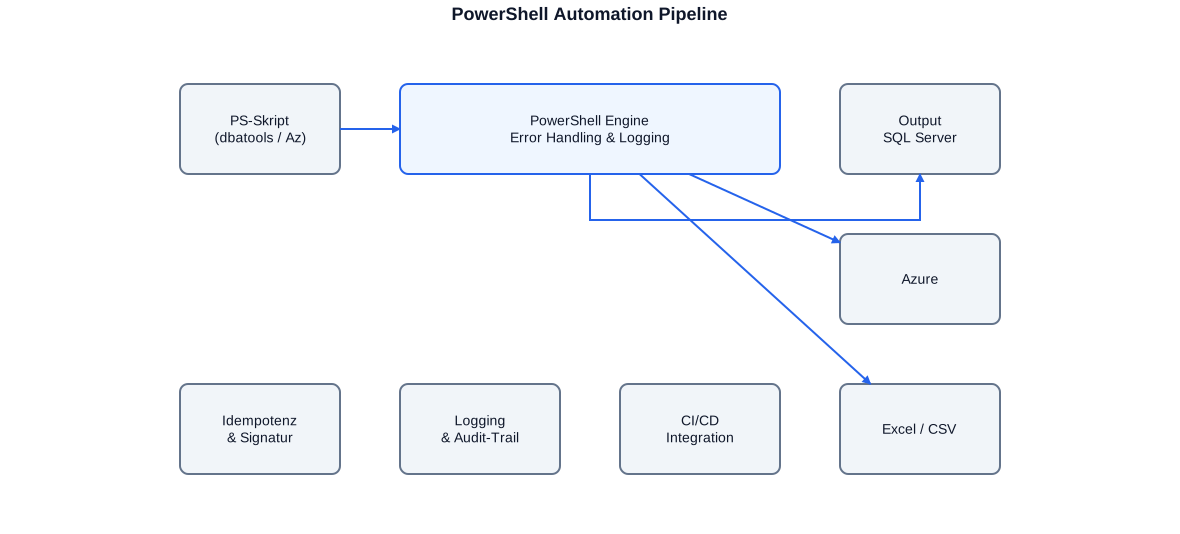
Overview of the PowerShell automation pipeline: input (script, dbatools/Az), processing in the engine with error handling and logging, output to SQL Server, Azure, and Excel/CSV.
Server Inventory with dbatools
The dbatools module is one of the greatest success stories in the PowerShell community. More than 600 cmdlets cover virtually every conceivable DBA task: connection management, instance inventory, database provisioning, backup and restore, permissions management, HADR monitoring, index maintenance, configuration comparison, and much more. The cmdlets follow the PowerShell Verb-Noun convention, are uniformly documented, and return typed objects that integrate seamlessly into custom scripts. With dbatools, a single line of code can retrieve information across a hundred servers -- something no person could achieve manually in a reasonable amount of time.
At a financial services provider, inventorying approximately 80 virtualised SQL Server instances was one of the first tasks I tackled with dbatools. The complete inventory -- build numbers, database sizes, recovery models, backup timestamps, and configuration deviations -- was produced in minutes and provided the foundation for every subsequent measure: patching prioritisation, security remediation, and capacity planning. What would have taken weeks manually was completed in a single scripted run.
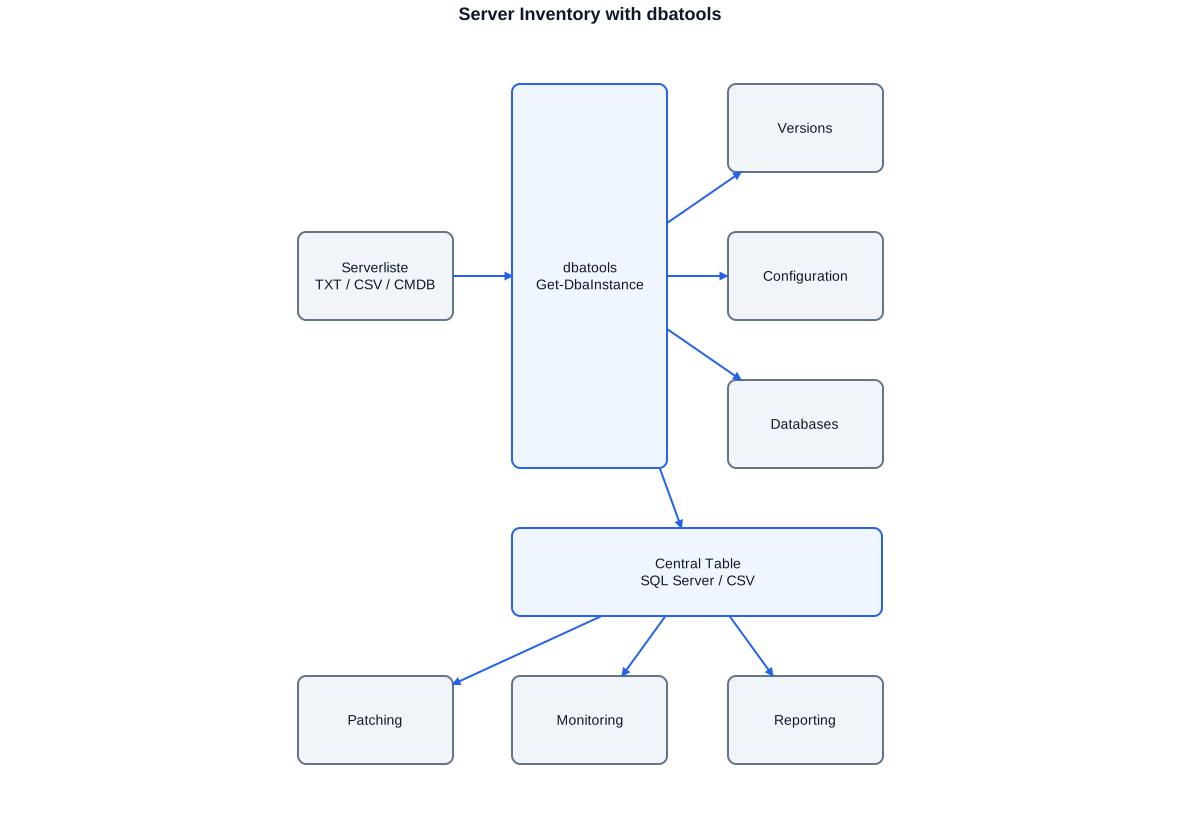
Workflow of the dbatools inventory: server list as input, data collection via multiple cmdlets, consolidation into a central table, consumption by patching, monitoring, and reporting.
Complete Inventory in Minutes
The code below shows how I collect a full SQL Server inventory across any number of instances, flag configuration deviations, and export the results both as a CSV and directly into a SQL Server control table. Failed connections are logged without aborting the overall run. The pattern is easily extended: backup status, missing indexes, pending configuration fixes, or CU patch level.
# Collects a complete SQL Server inventory from a server list.
# Stores instance data, database sizes, and build level as CSV
# and in a central control table (SQL Server).
#Requires -Modules dbatools

param(
    [string]$ServerListPath = 'C:\admin\sql_server_list.txt',
    [string]$OutputCsv      = 'C:\admin\sql_inventory.csv',
    [string]$CentralServer  = 'MGMT-SQL01',
    [string]$CentralDb      = 'DBA_Central',
    [string]$CentralTable   = 'dbo.Inventory'
)

Set-DbatoolsConfig -Name logging.errorloglevel -Value 5   # Verbose logging

$servers = Get-Content -Path $ServerListPath -ErrorAction Stop

$report = [System.Collections.Generic.List[PSCustomObject]]::new()

foreach ($srv in $servers) {
    try {
        # Build connection -- catch block handles failure without aborting
        $inst = Connect-DbaInstance -SqlInstance $srv `
                    -ConnectTimeout 10 -ErrorAction Stop

        # Instance baseline data
        $props = Get-DbaInstanceProperty -SqlInstance $inst |
            Where-Object { $_.Name -in @('BuildNumber','Edition','Collation',
                                          'MaxServerMemory','MinServerMemory') } |
            Group-Object -AsHashTable -Property Name

        # Databases: size, status, recovery model, backup age
        $dbs = Get-DbaDatabase -SqlInstance $inst -ExcludeSystem |
            Select-Object Name, Status, RecoveryModel, SizeMB,
                @{ N='BackupAgeDays'; E={
                    if ($_.LastBackupDate) {
                        [math]::Round(((Get-Date) - $_.LastBackupDate).TotalDays, 1)
                    } else { 9999 }   # no backup on record
                }}

        $obj = [PSCustomObject]@{
            Timestamp     = (Get-Date -Format 'yyyy-MM-dd HH:mm')
            Server        = $srv
            Build         = $props['BuildNumber'].Value
            Edition       = $props['Edition'].Value
            DatabaseCount = $dbs.Count
            TotalSizeMB   = ($dbs | Measure-Object SizeMB -Sum).Sum
            # Databases without backup in last 7 days -- action required
            NeedBackup    = ($dbs | Where-Object BackupAgeDays -gt 7).Name -join '; '
            MaxMemoryMB   = $props['MaxServerMemory'].Value
        }
        $report.Add($obj)
    }
    catch {
        # Log connection failure and continue with next server
        $report.Add([PSCustomObject]@{
            Timestamp = (Get-Date -Format 'yyyy-MM-dd HH:mm')
            Server    = $srv
            Build     = 'CONNECTION_ERROR'
            Edition   = $_.Exception.Message
        })
        Write-Warning "Error on $srv : $($_.Exception.Message)"
    }
}

# CSV export for audit trail
$report | Export-Csv -Path $OutputCsv -NoTypeInformation -Encoding UTF8
Write-Host "Inventory: $($report.Count) servers processed. CSV: $OutputCsv"

# Load into central control table (optional)
$report | Write-DbaDataTable -SqlInstance $CentralServer `
    -Database $CentralDb -Table $CentralTable -AutoCreateTable
Write-Host "Data loaded into $CentralServer.$CentralDb.$CentralTable"
This script collects a complete inventory across any number of SQL Server instances. Connection failures are logged without aborting the run. Results are exported as CSV and loaded into a central control table.
Configuration Comparison and Drift Detection
Beyond pure inventory, dbatools excels at detecting and correcting configuration deviations. Cmdlets like Test-DbaMaxMemory, Test-DbaConnectionAuthScheme, and Get-DbaSpConfigure retrieve the current state, which I compare against a target configuration baseline. Instances that deviate receive targeted corrections via Set-DbaMaxMemory or Set-DbaSpConfigure without touching the entire estate. This 'desired state' approach is the first step toward a consistent infrastructure-as-code strategy.
- Get-DbaDatabase: database sizes, recovery models, backup timestamps
- Get-DbaInstanceProperty: build numbers, editions, configuration values
- Test-DbaMaxMemory / Set-DbaMaxMemory: check and correct memory configuration
- Get-DbaDiskSpace: detect disk space criticality before monitoring alerts fire
- Copy-DbaDatabase: migrate databases between instances without backup/restore
- Invoke-DbaQuery: run T-SQL ad hoc or from file against N instances at once
SSDT/DACPAC Deployment Automation
SQL Server Data Tools (SSDT) allows database schemas to be version-controlled as Visual Studio projects and delivered as deployment artefacts. The artefact is a DACPAC -- a package containing a complete schema snapshot. SqlPackage.exe or the PowerShell cmdlet Publish-DbaDacPackage can compare this DACPAC against a target database and apply only the delta changes, without manually authored change scripts. The result is an idempotent, reproducible deployment that can be embedded in any CI/CD pipeline.
At a savings bank, I automated the entire SSDT deployment workflow: DACPAC build in the CI system, automatic comparison with the target database, generation of a change report for review, followed by automated DACPAC application after approval. The manual script roulette -- where developers maintained hand-crafted change scripts and version conflicts arose regularly -- was eliminated. At a textile and service provider I combined SSDT deployment with Azure DevOps pipeline integration and Entra ID-based service accounts, simplifying access configuration and raising the security standard.
# Automated SSDT/DACPAC deployment with idempotency and rollback safety.
# Builds the DACPAC from the SSDT project, compares with the target database,
# and applies the changes idempotently.
#Requires -Modules dbatools

param(
    [Parameter(Mandatory)][string]$SsdtProjectPath,  # Path to .sqlproj file
    [Parameter(Mandatory)][string]$TargetServer,      # Target SQL Server
    [Parameter(Mandatory)][string]$TargetDatabase,    # Target database
    [string]$DacpacOutputDir = 'C:\builds\dacpacs',
    [string]$BackupDir       = 'C:\builds\backups',
    [switch]$WhatIf                                   # Compare only, no deployment
)

$ErrorActionPreference = 'Stop'
$timestamp = Get-Date -Format 'yyyyMMdd_HHmmss'
$logFile   = "$DacpacOutputDir\deploy_${TargetDatabase}_${timestamp}.log"

function Write-Log {
    param([string]$Msg, [string]$Level = 'INFO')
    $entry = "[$((Get-Date -Format 'HH:mm:ss'))] [$Level] $Msg"
    Add-Content -Path $logFile -Value $entry
    if ($Level -eq 'ERROR') { Write-Error $entry } else { Write-Host $entry }
}

try {
    Write-Log "Starting DACPAC deployment: $TargetDatabase on $TargetServer"

    # Step 1: MSBuild -- compile DACPAC from SSDT project
    Write-Log "Building SSDT project: $SsdtProjectPath"
    $msbuild = "${env:ProgramFiles(x86)}\MSBuild\Current\Bin\MSBuild.exe"
    & $msbuild $SsdtProjectPath /p:Configuration=Release /p:OutputPath=$DacpacOutputDir `
        /verbosity:minimal /nologo
    if ($LASTEXITCODE -ne 0) { throw "MSBuild failed. Exit code: $LASTEXITCODE" }

    $dacpacName = [System.IO.Path]::GetFileNameWithoutExtension($SsdtProjectPath)
    $dacpacPath = Join-Path $DacpacOutputDir "$dacpacName.dacpac"
    Write-Log "DACPAC created: $dacpacPath"

    # Step 2: Safety checkpoint -- backup before deployment
    if (-not $WhatIf) {
        Write-Log "Creating pre-deployment backup..."
        $bkName = "${TargetDatabase}_PreDeploy_${timestamp}.bak"
        Backup-DbaDatabase -SqlInstance $TargetServer -Database $TargetDatabase `
            -Path $BackupDir -FilePath $bkName -CompressBackup -Checksum | Out-Null
        Write-Log "Backup created: $BackupDir\$bkName"
    }

    # Step 3: Generate change report (always, even in WhatIf mode)
    Write-Log "Generating change report..."
    $reportPath = "$DacpacOutputDir\${TargetDatabase}_${timestamp}_changes.xml"
    $sqlpkg = "${env:ProgramFiles(x86)}\Microsoft SQL Server\160\DAC\bin\SqlPackage.exe"
    & $sqlpkg /Action:DeployReport /SourceFile:$dacpacPath `
        /TargetServerName:$TargetServer /TargetDatabaseName:$TargetDatabase `
        /OutputPath:$reportPath /p:DropObjectsNotInSource=false
    Write-Log "Change report saved: $reportPath"

    if ($WhatIf) {
        Write-Log "WhatIf mode: no deployment, only report generated." 'WARN'
        return
    }

    # Step 4: Apply DACPAC idempotently
    Write-Log "Applying DACPAC..."
    Publish-DbaDacPackage -SqlInstance $TargetServer -Database $TargetDatabase `
        -Path $dacpacPath -PublishXml "$DacpacOutputDir\publish.xml" |
        Tee-Object -FilePath $logFile -Append
    Write-Log "Deployment completed successfully."
}
catch {
    Write-Log "Deployment failed: $($_.Exception.Message)" 'ERROR'
    Write-Log "Rollback: restore last backup if required." 'WARN'
    throw
}
This script builds a DACPAC from an SSDT project, creates a pre-deployment backup, generates a change report, and applies changes idempotently. In WhatIf mode only the report is generated; no actual deployment is performed.
Publish.xml and Deployment Options
SqlPackage.exe and Publish-DbaDacPackage accept a publish XML file in which deployment options are controlled in fine detail: should the database be created if it doesn't exist? Should objects absent from the DACPAC be dropped from the target? Should certain tables or schemas be excluded from deployment? These options are version-controllable and can vary by environment (Dev, Test, Prod) without code changes, giving full control over deployment behaviour.
Populating Excel from DWH Data (ImportExcel)
One of the most frequent requirements in DWH projects is the automated delivery of data in Excel workbooks: management reports, monthly evaluations, departmental summaries distributed by email. The naive solution is an SSIS package with an Excel destination connector -- fragile, 32/64-bit dependent, and high maintenance. The elegant solution is the ImportExcel module, which creates Excel files without any installed Excel, fully formatted with formulas, pivot tables, and charts. I use ImportExcel in CI/CD-ready PowerShell scripts that run reliably on servers that have no Microsoft Office installed.
At a public research organisation, I built a PowerShell script that extracts data from the Data Warehouse monthly, formats it, and writes it into multi-sheet Excel workbooks. The script was integrated into the Jenkins CI/CD pipeline and ran on a schedule. Business departments automatically received accurate, current reports without any DBA or BI developer needing to intervene manually. At the same time the script was version-controlled, so changes to layout and calculation logic remained fully traceable.
# Exports DWH data into formatted Excel workbooks.
# Uses ImportExcel -- no Microsoft Office required on the server.
# Creates multiple sheets, conditional formatting, and AutoFilter.
#Requires -Modules ImportExcel, dbatools

param(
    [string]$DwhServer   = 'DWH-SQL01',
    [string]$DwhDatabase = 'DataWarehouse',
    [string]$OutputPath  = 'C:\reports\DWH_MonthlyReport.xlsx',
    [int]   $MonthOffset = 0   # 0 = current month, -1 = previous month, etc.
)

$ErrorActionPreference = 'Stop'
$reportMonth = (Get-Date).AddMonths($MonthOffset).ToString('yyyy-MM')
Write-Host "Creating report for month: $reportMonth"

# T-SQL queries for the individual sheets
$sqlRevenue = @"
SELECT
    Department,
    CostCenter,
    SUM(Revenue_USD)  AS Revenue_USD,
    SUM(Cost_USD)     AS Cost_USD,
    SUM(Revenue_USD) - SUM(Cost_USD) AS ContributionMargin
FROM dwh.FactRevenue
WHERE FORMAT(BookingDate, 'yyyy-MM') = '$reportMonth'
GROUP BY Department, CostCenter
ORDER BY Department, CostCenter;
"@

$sqlTopCustomers = @"
SELECT TOP 20
    CustomerNo,
    CustomerName,
    SUM(Revenue_USD) AS Revenue_USD
FROM dwh.FactRevenue f
JOIN dwh.DimCustomer c ON f.CustomerKey = c.CustomerKey
WHERE FORMAT(BookingDate, 'yyyy-MM') = '$reportMonth'
GROUP BY CustomerNo, CustomerName
ORDER BY Revenue_USD DESC;
"@

# Fetch data from DWH
Write-Host "Loading revenue data from DWH..."
$revenueData     = Invoke-DbaQuery -SqlInstance $DwhServer -Database $DwhDatabase -Query $sqlRevenue
$topCustomerData = Invoke-DbaQuery -SqlInstance $DwhServer -Database $DwhDatabase -Query $sqlTopCustomers

# Remove existing file (idempotent behaviour)
if (Test-Path $OutputPath) { Remove-Item $OutputPath -Force }

# Sheet 1: Revenue by department
$xlParam = @{
    Path          = $OutputPath
    WorksheetName = "Revenue_$reportMonth"
    TableName     = "TblRevenue"
    TableStyle    = 'Medium9'
    AutoSize      = $true
    FreezeTopRow  = $true
    AutoFilter    = $true
    BoldTopRow    = $true
    PassThru      = $true   # Return Excel package for further edits
}
$excelPkg = $revenueData | Export-Excel @xlParam

# Conditional formatting: highlight negative contribution margin in red
$ws       = $excelPkg.Workbook.Worksheets["Revenue_$reportMonth"]
$lastRow  = $ws.Dimension.End.Row
Add-ConditionalFormatting -WorkSheet $ws `
    -Range "E2:E$lastRow" `
    -RuleType LessThan -ConditionValue 0 `
    -BackgroundColor ([System.Drawing.Color]::FromArgb(255, 200, 200))

# Sheet 2: Top 20 customers
$topCustomerData | Export-Excel -ExcelPackage $excelPkg `
    -WorksheetName "Top20_Customers" `
    -TableName "TblTopCustomers" `
    -TableStyle 'Medium6' `
    -AutoSize -FreezeTopRow -AutoFilter

# Save and close
Close-ExcelPackage $excelPkg
Write-Host "Excel report created: $OutputPath"
This script queries Data Warehouse data via Invoke-DbaQuery, generates a multi-sheet Excel workbook with formatted tables and conditional formatting for negative values, without Microsoft Office on the server. ImportExcel creates genuine .xlsx files.
Pivot Tables and Charts with ImportExcel
ImportExcel also supports pivot tables and embedded charts, significantly enhancing the usability of exported reports. With Add-PivotTable and Add-ExcelChart, dynamic analysis areas and visualisations can be built directly into the script, allowing recipients to explore data without needing advanced Excel skills. For controlling and finance departments this is often the most pragmatic path to recurring, automated reporting.
Azure PowerShell: Entra ID, KeyVault, Storage
The Az module is the official PowerShell interface for Azure. It covers all Azure services relevant to a SQL Server and DWH freelancer: Entra ID (formerly Azure Active Directory) for user and group management, Key Vault for secure management of secrets and connection strings, Azure Storage for backup targets and file transfers, and Azure SQL and Synapse for cloud-side database operations. I use the Az module consistently in automation scripts that genuinely fulfil security requirements: no passwords in scripts, Key Vault references and Managed Identities instead.
At a textile and service provider, I developed Azure PowerShell scripts that synchronise Entra ID groups with database access permissions, securely retrieve database connection strings from Key Vault, and store backup files in Azure Blob Storage. This approach eliminated hard-coded credentials from scripts and configuration files entirely and replaced them with secure, rotatable Key Vault secrets. At the same client, Azure PowerShell also served as the lever for analysing Azure costs and identifying optimisation potential for unused resources.
# Reads a connection string securely from Azure Key Vault
# and queries members of an Entra ID security group.
# No hard-coded passwords in the script.
#Requires -Modules Az.KeyVault, Az.Accounts, Az.Resources

param(
    [Parameter(Mandatory)][string]$TenantId,        # Entra ID tenant
    [Parameter(Mandatory)][string]$SubscriptionId,  # Azure subscription
    [string]$KeyVaultName = 'kv-dwh-prod',
    [string]$SecretName   = 'sql-dwh-connstr',
    [string]$GroupName    = 'GRP-DWH-ReadOnly'      # Entra ID group
)

$ErrorActionPreference = 'Stop'

# Authentication -- prefer Managed Identity, fall back to interactive
try {
    Connect-AzAccount -Identity -TenantId $TenantId `
        -SubscriptionId $SubscriptionId -ErrorAction Stop
    Write-Host "Authenticated via Managed Identity."
}
catch {
    Write-Warning "Managed Identity not available, switching to interactive login."
    Connect-AzAccount -TenantId $TenantId -SubscriptionId $SubscriptionId
}

# Read connection string securely from Key Vault
Write-Host "Reading secret '$SecretName' from Key Vault '$KeyVaultName'..."
$secret = Get-AzKeyVaultSecret -VaultName $KeyVaultName -Name $SecretName `
    -AsPlainText -ErrorAction Stop
Write-Host "Secret retrieved successfully. (Value not echoed to console)"

# Retrieve Entra ID group and its members
Write-Host "Loading members of group: $GroupName"
$group   = Get-AzADGroup -DisplayName $GroupName -ErrorAction Stop
$members = Get-AzADGroupMember -GroupObjectId $group.Id |
    Select-Object DisplayName, UserPrincipalName, UserType

Write-Host "Group: $($group.DisplayName)"
Write-Host "Members ($($members.Count)):"
$members | Format-Table -AutoSize

# Filter to active user accounts only (exclude guest accounts)
$activeMembers = $members | Where-Object UserType -eq 'Member'
Write-Host "Active members (non-guest): $($activeMembers.Count)"

# Provide secret as SecureString for downstream use
$secureConn = ConvertTo-SecureString -String $secret -AsPlainText -Force
# $secureConn can now be passed to Invoke-DbaQuery or similar
Write-Host "Connection string available as SecureString."

# Release Azure session
Disconnect-AzAccount | Out-Null
Write-Host "Azure session closed."
This script authenticates via Managed Identity (or falls back to interactive login), reads a connection string securely from Azure Key Vault, and queries Entra ID group members. No passwords are stored in the script.
Azure Backup Storage via Blob
A typical scenario is automated off-site backup storage in Azure Blob Storage. With New-AzStorageContext, Set-AzStorageBlobContent, and Remove-AzStorageBlob, a complete backup lifecycle management process can be implemented in PowerShell: create backup, upload to Azure, retain files newer than N days, delete older ones. Authentication uses Managed Identity or a SAS token stored in Key Vault -- no storage account key in plain text anywhere.
Azure Cost Monitoring with PowerShell
Get-AzConsumptionUsageDetail and Get-AzCostManagementQuery return consumption data that can be aggregated and reported via PowerShell. I have built scripts that analyse daily Azure costs by resource type and subscription and automatically alert via email and Teams messages when thresholds are exceeded. Combined with PowerShell-driven stop/deallocate actions for unused VMs, this delivered measurable cost savings for one client.
CI/CD with Jenkins and Azure DevOps
Continuous Integration and Continuous Deployment are the context in which PowerShell scripts deliver their full value. A script a DBA runs manually is useful. The same script automatically triggered on every Git commit -- building, testing, packaging, and deploying to the target environment -- is infrastructure as code. CI/CD systems like Jenkins and Azure DevOps provide the framework; PowerShell scripts form the actual automation logic.
At a public research organisation I embedded the entire ETL and reporting process into a Jenkins pipeline: SSIS packages were built, automatically run against a test database, tSQLt tests executed, and on success the DACPAC was applied to production. PowerShell scripts handled all deployment steps. At an industrial machinery manufacturer the equivalent was an Azure DevOps pipeline with YAML definition, mapping the same process to Azure infrastructure.
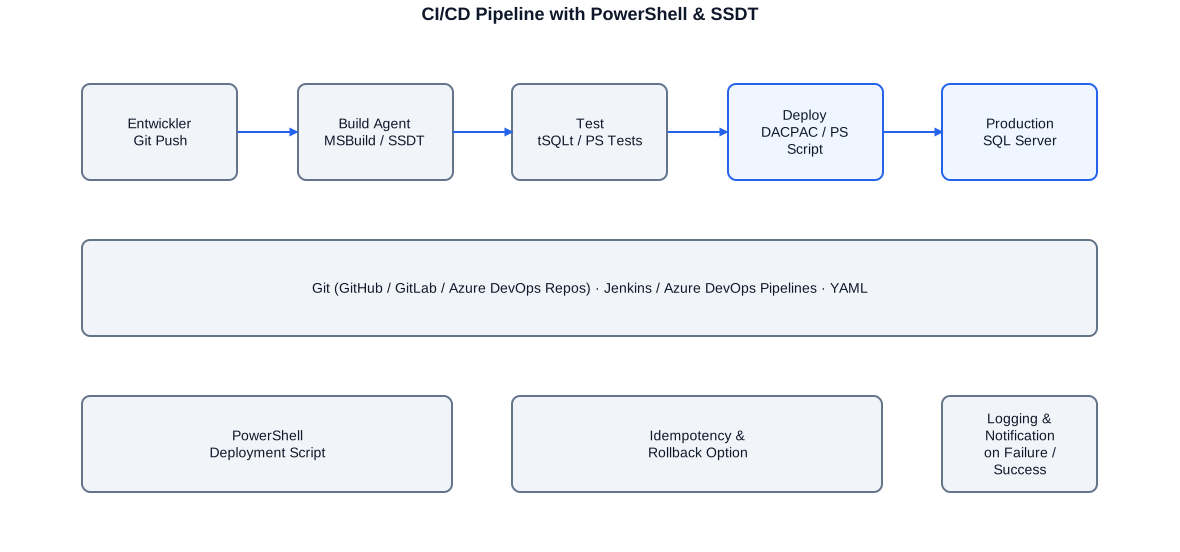
CI/CD pipeline architecture for SSDT deployment: Git push triggers the build, MSBuild produces the DACPAC, tSQLt tests validate, PowerShell deploys idempotently to the target environment.
Jenkins Pipeline with PowerShell Stages
In Jenkins a pipeline is typically defined as a Jenkinsfile (Groovy). Each stage can invoke PowerShell scripts, archive results as artefacts, and send notifications on failure or success. I structure Jenkins pipelines into clearly separated stages: Build (MSBuild/SSDT), Test (tSQLt, Pester), Deploy (DACPAC), Notify (email/Teams on failure or success). This structure makes pipeline status immediately visible in the Jenkins UI and enables targeted troubleshooting.
Azure DevOps with YAML Pipelines
Azure DevOps YAML pipelines are declarative, versioned, and stored directly in the Git repository. I prefer multi-stage pipelines with explicit environments and deployment gates that enforce a manual approval before the production deployment. PowerShell steps in YAML are defined as script: or task: powershell@2 and can run on Azure-hosted or self-hosted agents. Variable groups in Azure DevOps can be linked to Key Vault secrets so that no secret ever appears in the YAML code.
- Jenkins: Jenkinsfile (Groovy) with PowerShell stages, artefact archiving
- Azure DevOps: YAML multi-stage pipelines, environments, deployment gates
- PowerShell steps: build, test (tSQLt/Pester), deploy (DACPAC), notify
- Variable groups with Key Vault integration: no secrets in code
- Self-hosted vs. Azure-hosted agents: trade-offs for SQL Server deployments
- Branch strategies: feature branches, main branch as deployment trigger
Error Handling, Logging, and Idempotency
Robust error handling distinguishes a production script from a one-off throwaway. I develop PowerShell scripts according to three core principles: Fail-Fast for critical errors (ErrorAction Stop, throw on invalid states), Graceful Degradation for non-critical errors (try/catch per unit, log and continue), and Idempotency -- the script can run multiple times and leave the same target state each time, without creating duplicates or partial operations.
Logging is the script's memory. I record every step with timestamp, severity level (INFO/WARN/ERROR), affected object, and exception detail where applicable. Logs are written both to files and via Write-Host for CI/CD consoles. Critical errors trigger additional email or Teams notifications. This design means a production incident can be analysed immediately with full context, without relying on server event logs or recollections.
Idempotency Patterns in PowerShell
Idempotency means: check whether the target state has already been reached before acting, and act only if it has not. For database operations: does the object already exist? Does the table already have the correct column? Has the job already run today? These patterns prevent duplicate entries, conflicts, and inconsistent states when scripts are restarted after failure or run in parallel CI/CD executions.
Structured Logging Pattern
Instead of ad hoc Write-Host and Write-Error calls, I use a central log function that standardises all output: timestamp, level (INFO/WARN/ERROR), script name, line number, and message. In CI/CD environments the same log is written simultaneously to the console and a log file that is archived as a build artefact. Every pipeline run is fully traceable, even weeks after execution.
- ErrorAction Stop: treat cmdlet errors as terminating exceptions
- try/catch/finally: granular error handling per unit of work
- Idempotency: 'test-then-act' pattern before every state-changing operation
- Structured logging: timestamp, level, context, exception details
- Transaction rollback: wrap database changes in transactions
- Retry logic for transient errors (network timeouts, lock conflicts)
Self-Healing and Monitoring Scripts
Monitoring scripts report problems. Self-healing scripts resolve them. This level of automation makes sense where problems are known, recurring, and safely resolvable automatically. Typical examples: a SQL Agent job has failed and should be automatically restarted for specific error patterns. A transaction log has grown unexpectedly due to a runaway ETL process and should be shrunk after remediation. An Azure VM has stopped unexpectedly and should be started automatically during business hours.
I build self-healing scripts with clear logic: check state, make decision, execute action, log. The action must never be blind -- every automatic correction is logged, and after more than N repetitions within a defined time window the script stops acting automatically and requests human intervention instead. This escalation tier is critical to avoid endless feedback loops.
Proactive Disk Space Monitoring
A classic self-healing scenario is disk space management: databases grow, log files fill up, backup paths become full. With dbatools cmdlets like Get-DbaDiskSpace and database log space analysis, proactive alerts can be built based on thresholds, not on the last available kilobyte. Combined with automated cleanup of older backup files and log space analysis, this results in a script that prevents disk space crises instead of merely reporting them.
SQL Agent Job Monitoring
Failed SQL Agent jobs can be queried and automatically analysed with dbatools. Get-DbaAgentJobHistory returns the execution history for all jobs; Start-DbaAgentJob triggers a manual restart. In a simple monitoring loop -- run as a Windows Scheduled Task or SQL Agent job every 15 minutes -- known transient failures (network outage, lock timeout) can be automatically resolved by restarting, while structural failures (script bug, missing table) are escalated immediately.
Script Signing and Execution Policy
In regulated enterprise environments, executing unsigned PowerShell scripts is frequently blocked by execution policy and AppLocker rules. Execution policies AllSigned or RemoteSigned require scripts to be signed by a trusted certificate before they can run. This requirement is not an obstacle but a sensible security measure: signed scripts cannot be modified without detection, and their provenance is cryptographically verifiable.
I sign production scripts with code-signing certificates from the enterprise PKI infrastructure. The signing process can be integrated into the CI/CD pipeline: every script that has successfully passed the build process is automatically signed with the build agent certificate and uploaded as a signed artefact to the artefact repository. All production scripts are thus signed automatically, without manual effort.
Set-AuthenticodeSignature in the CI/CD Pipeline
Set-AuthenticodeSignature is the PowerShell cmdlet for signing. It requires a certificate with Key Usage 'Code Signing'. In Azure DevOps the certificate can be stored securely in Key Vault and retrieved via Az.KeyVault cmdlets. Get-AuthenticodeSignature verifies the signature of a file and can serve as a pre-deployment check in the pipeline.
Execution Policy Recommendations
For production servers I recommend the execution policy AllSigned or RemoteSigned, enforced via Group Policy. For development environments, Bypass or Unrestricted can be set per scope CurrentUser without changing the server-wide policy. Important: execution policy is not a security mechanism against deliberate malicious actors with local admin rights -- it is a guard against accidental execution of unsigned scripts by legitimate users.
Collaboration Approach
The typical starting point for a PowerShell automation engagement is an assessment: what runs manually today? Where is there friction, errors, or time loss? What scripts already exist, and are they maintainable, tested, and version-controlled? This analysis typically takes half a day to a day and produces a prioritised list of automation opportunities ranked by effort and benefit.
Then comes implementation: iterative, with early feedback. I develop scripts in small, testable units rather than as monoliths. Every function is covered by Pester tests before being integrated into the pipeline. This approach reduces surprises during the first production run and makes maintenance by internal teams after my engagement easier.
- Assessment: identify manual processes, inventory existing scripts
- Design: plan module structure, parameters, error handling, logging
- Implementation: iterative, with Pester unit tests for critical functions
- Integration: CI/CD embedding, signed scripts, scheduled tasks
- Documentation: comment-based help, README, operations runbook
- Handover: knowledge transfer to the internal team, not dependency creation
My experience in regulated environments -- financial sector, public administration -- translates into particular care for documentation and traceability. Every script receives complete comment-based help with author, version, change history, and usage examples. I document operations in a brief runbook explaining how to start the script, how to diagnose errors, and what to do in case of failure.
Typical Services in PowerShell Automation
My PowerShell service spectrum ranges from isolated individual scripts to complete automation solutions embedded in existing CI/CD infrastructure. Depending on the project phase and requirements, I handle specific areas or the full automation stack.
- Server estate inventory and configuration comparison with dbatools
- SSDT/DACPAC deployment automation for Dev/Test/Prod environments
- Excel export from DWH data with ImportExcel (no Microsoft Office on server)
- Azure PowerShell: Entra ID management, Key Vault integration, backup to Blob Storage
- CI/CD integration: Jenkins Jenkinsfile and Azure DevOps YAML pipelines
- Error handling, structured logging, and idempotency for production scripts
- Self-healing scripts for known, recurring operational issues
- Script signing with code-signing certificates and execution policy configuration
- Pester unit tests for critical PowerShell functions
- Knowledge transfer and runbook creation for internal teams
- Review of existing scripts: security, idempotency, robustness, maintainability
- Migration support: porting legacy batch scripts to modern PowerShell modules
These services are not isolated from each other -- their strength lies in the combination. An SSDT deployment script running in the CI/CD system, retrieving connection data from Key Vault, logging errors structurally, and executing signed is more than the sum of its parts. It is a complete, secure, auditable operating model.
I offer PowerShell automation both as a standalone topic and as a complement to SQL Server and Azure projects. The greatest value often emerges when existing manual processes -- deployment, reporting, monitoring -- are systematically automated within a longer engagement, while the core project (DWH build, migration, performance) progresses in parallel.
Selected anonymous reference projects
Public Research Organisation
Development of a PowerShell script for monthly automated population of Excel workbooks from Data Warehouse data (ImportExcel module, no Office on server). Integration into Jenkins CI/CD pipeline for scheduled, reproducible delivery to business departments. Combined with tSQLt regression tests and SSDT deployment automation.
Savings Bank / Financial Services Provider
Full automation of the SSDT deployment workflow: DACPAC build, pre-deployment backup, change report generation, and idempotent application via PowerShell. Replacement of manual change scripts with a reproducible pipeline. Additionally, configuration comparison and correction across multiple SQL Server instances via dbatools.
Textile and Service Provider
Azure PowerShell scripts for Entra ID group synchronisation with database access permissions, secure connection string management via Key Vault integration, and automated backup storage in Azure Blob Storage. SSDT deployment automation with Azure DevOps integration. Cost transparency and optimisation via PowerShell reports.
Industrial Machinery Manufacturer
Construction of automated Azure DevOps YAML pipelines for SSIS build and deployment. PowerShell scripts for all deployment steps in the CI/CD context, variable groups with Key Vault integration, multi-stage deployment with manual approval before production. Full replacement of manual deployment procedures with a versioned, auditable process.
Frequently asked questions about PowerShell automation
Why PowerShell rather than Python for SQL Server automation?
PowerShell has deeper native integration with Windows infrastructure, Active Directory, and WMI/CIM, and the dbatools module provides over 600 specialised SQL Server cmdlets with no Python equivalent. For pure data processing tasks Python is stronger; for SQL Server administration, Windows Server configuration, and Azure management, PowerShell is the significantly more productive choice. In many projects I use both languages complementarily.
What is dbatools and why is it so important?
dbatools is an open-source PowerShell module with over 600 cmdlets covering virtually every DBA task: inventory, backup, restore, migration, HADR monitoring, configuration management. The cmdlets are uniformly documented, return typed objects, and are usable in CI/CD pipelines. Anyone managing large SQL Server estates cannot avoid dbatools.
Can I use SSDT deployment without CI/CD?
Yes. The PowerShell deployment script (Publish-DbaDacPackage or SqlPackage.exe) also runs as a manually executed script or as a SQL Agent job. The CI/CD context is the next step that fully automates the process, but is not required to realise the benefits of idempotent DACPAC deployments.
How secure are PowerShell scripts handling Azure credentials?
Credentials have no place in scripts. I consistently use Azure Key Vault for secrets and prefer Managed Identities, which require no secrets at all. Certificate-based authentication is also an option. Script signing provides additional tamper protection. In regulated environments this approach is mandatory.
What is ImportExcel and does it run without Microsoft Office?
ImportExcel is a PowerShell module that creates and manipulates Excel files (.xlsx) without installed Microsoft Office. It is based on EPPlus, a .NET library for Office Open XML. No COM interop awkwardness, no 32/64-bit conflicts, full server compatibility. Supported features range from simple tables to conditional formatting and pivot tables.
How do I integrate PowerShell scripts into Jenkins or Azure DevOps?
In Jenkins, PowerShell scripts are invoked as a powershell step in the Jenkinsfile. In Azure DevOps there is the PowerShell@2 task or a script: step in YAML. Secrets are provided via variable groups with Key Vault references and never appear in the YAML code. Build artefacts (DACPACs, logs) are archived and traceable in every build run.
What does idempotency mean concretely for PowerShell scripts?
An idempotent script can run ten times in succession and produce the same result as the first run -- no duplicates, no errors, no inconsistent states. Concretely: before every state-changing operation, check whether it is necessary. DACPAC deployment is inherently idempotent. SQL Agent job creation checks whether the job already exists before creating it.
What languages can we work in?
German, English, and Portuguese -- all fluently, including technical and business discussions.


