Positioning
Power BI has profoundly changed the way organisations analyse and present their data. What used to require months-long BI projects with rigid reporting tools and dedicated IT effort can today be built quickly and visually in Power BI. This accessibility is one of the tool's greatest strengths – and at the same time the source of its most common problems. Anyone who treats Power BI as nothing more than a drag-and-drop visualisation tool builds reports that work at small scale and fail at large scale: slow, inconsistent, hard to maintain, and vulnerable to errors in filter context.
My focus therefore lies not on the visual end product but on the foundation beneath it. A Power BI model that is built cleanly – with a star schema as its basis, well-defined measures, a reliable security concept, and a clear governance framework – not only delivers correct figures today but also remains maintainable and extensible when new requirements arrive or the team changes. Laying exactly that foundation is the core of my work with Power BI.
My Power BI experience is rooted in years of work with SSAS Tabular and DAX, long before Power BI Desktop existed in its current form. The engine behind Power BI – the tabular model and the DAX formula language – is the same one that powers SSAS Tabular. Those who truly understand these fundamentals think not in report elements but in data models, in relationships, in filter contexts, and in the evaluation order of measures. This understanding is what distinguishes a sustainable Power BI build from a collection of workarounds.
In my projects I have deployed Power BI in very different contexts: for clearing processes in the loyalty sector with complex RLS rules and GDPR-compliant anonymisation, for reports and apps at a textile and service provider with HR, finance, and controlling data, and for SSAS Tabular models in engineering and consulting projects with demanding DAX calculations. This breadth helps: patterns proven in one context can be transferred to new requirements.
What makes good Power BI
Power BI is more than a visualisation tool. Behind every report lies a semantic model – a tabular data model that unites tables, relationships, measures, and security rules. Those who understand this model as the centrepiece rather than a secondary detail build Power BI solutions that scale, deliver reliable results, and can be maintained by others. Those who ignore it accumulate reports that grow ever slower, ever harder to understand, and ever more expensive to extend with each new requirement.
Semantic model as the foundation
The semantic model – formerly called a Power BI dataset, now officially named Semantic Model – is the central knowledge base. This is where tables and their relationships live, where measures are defined that establish the business term 'Revenue' bindingly, and where it is determined who may see which data. A well-maintained semantic model decouples business logic from individual reports: every report that uses the model receives the same correct figures – without each report carrying its own revenue calculation.
Star schema as a design principle
The data model ideally follows a star schema: one or more fact tables at the centre, surrounded by dimension tables that describe the analytical dimensions. This pattern is not only performant – because the VertiPaq engine compresses and evaluates it particularly efficiently – but also comprehensible: anyone who reads the model immediately recognises which tables contain measures and which supply context. A normalised snowflake schema copied directly from a relational database is rarely a good idea – it makes writing DAX considerably harder.
DAX as a precision instrument
DAX, the formula language of Power BI and SSAS Tabular, is powerful and subtle. It follows its own logic centred on filter context: which rows are visible when a measure is evaluated? Those who write DAX intuitively occasionally get the right answer – and more often one that appears wrong because the filter context behaves differently than expected. Those who understand DAX write measures that are correct in every visual context, that are performant, and that can be read by others.
- Semantic model as the binding knowledge source for all reports
- Star schema: fact tables at the centre, dimensions as context
- DAX measures for all business KPIs – once, correct, traceable
- Row-Level-Security for data-driven access control
- Choice of storage mode (Import/DirectQuery/Composite) by requirement
- Governance through apps, workspaces, and deployment pipelines
Governance closes the gap
A technically excellent model is of little use if nobody can find it, if every business department builds its own counterpart, or if after six months nobody knows how to maintain the RLS rules any longer. Governance in Power BI means: clear workspace structures, a defined lifecycle for certified versus personal reports, deployment pipelines that transport changes safely from development through test to production, and a traceable documentation of the model structure and security rules. Only these framework conditions turn individual reports into a consistent, well-maintained BI landscape.
What connects all these building blocks is an end-to-end understanding: from the source data structure through the data model to the visible report. Those who only know the report optimise at the wrong end. Those who think model, DAX, and governance together build a solution that not only works today but also holds up a year from now.
From raw data to report
The path from a source table to a reliable dashboard in Power BI is not a single step but a chain of clearly separated stages. Each stage has a defined responsibility, and problems at an early stage propagate relentlessly through all subsequent ones. A typical Power BI project passes through these phases: data integration and transformation, data modelling, measure development, security concept, report development, and finally deployment and operations.
In the first phase – data integration – the sources are connected and the data is brought into a form suitable for Power BI. This happens either via Power Query (M) directly in Power BI Desktop or – for larger projects – via an upstream ETL layer in SQL Server, Azure Data Factory, or a comparable tool. For productive, robust systems I prefer an external preparation layer: source data is cleaned, denormalised, and made available as a simple star schema. Power Query then becomes not a transformation tool but merely a thin loading step.
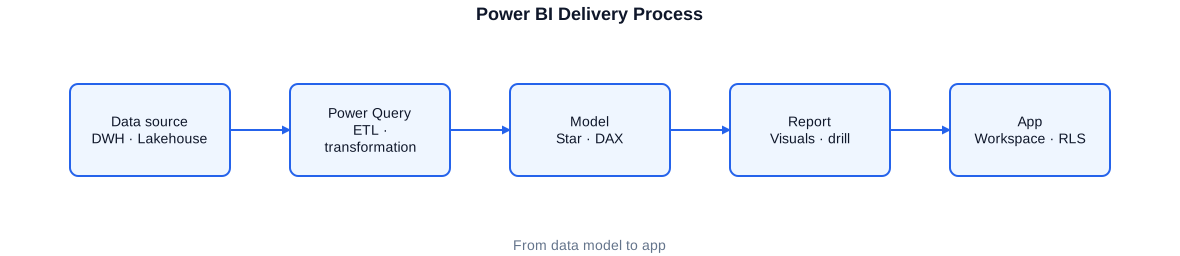
The path from raw data through data integration, modelling, and measure development to the published report in a Power BI workspace with deployment pipeline.
In the modelling phase the semantic model is created: fact tables and dimensions are loaded, relationships are drawn, date tables are set up, and the first base measures are defined. This phase is the most important and the most frequently underestimated: what is done cleanly here carries the entire project. What goes wrong here – incorrect relationship directions, missing date tables, normalised dimensions – produces follow-on errors in DAX and in performance that are hard to correct later.
Only after modelling does report development follow. Visual and narrative design serve the business message: a good report guides the reader without overwhelming them. It shows the right KPI in the right context and makes deviations immediately visible. Deployment pipelines transport the finished report from the development environment through test to production, without manual interventions and without the risk that an unfinished version is accidentally published.
Star schema in the data model
The tabular model behind Power BI is a highly optimised in-memory engine called VertiPaq. This engine compresses column data and can aggregate millions of rows in milliseconds – but only when the model is built in such a way that VertiPaq can play to its strengths. The star schema is the design principle that enables exactly that.
Fact table and dimensions
The fact table holds the measures – Revenue, Quantity, Cost, Booking Amounts – and the foreign keys to the dimension tables. It is typically narrow (few columns) and tall (many rows). Dimension tables describe the context: Time, Product, Customer, Region, Cost Centre. They are wide (many attributes) and comparatively short. The relationships between facts and dimensions are one-to-many relationships in which the dimension forms the one side. DAX filters propagate naturally in this direction without any helper formulas being needed.
Date table is mandatory
An explicit date table is not an optional extra but a prerequisite for correct time intelligence in DAX. Power BI can generate an automatic date table, but this produces hidden tables, makes the model harder to understand, and leads to unexpected results with DAX time functions. I always create date tables explicitly – either in the data source, in Power Query, or as a calculated table – and mark them as the date table so that DAX can use time-intelligence functions correctly. The date table covers all required attributes: Year, Quarter, Month, Week, Weekday, Fiscal Year, and where relevant Public Holidays.
Normalisation and denormalisation in the right measure
The source database is often heavily normalised – which is good for a transactional database but problematic for an analytical model. In the Power BI model, dimension tables should be flat and denormalised. A product dimension with product name, category, subcategory, and brand as separate columns is better than three normalised tables connected via foreign keys. Flattening these hierarchies ideally happens in the ETL layer or in Power Query – not through calculated columns in the model, which burden VertiPaq's compression.
- Keep fact tables narrow: only measures and foreign keys
- Denormalise dimension tables flat – no snowflake schema
- Explicit date table, marked as the date table
- Relationship direction: dimension filters fact table (1:n)
- Surrogate keys as integer type for fast joins
- No calculated columns for fields that already exist in the source
Calculated columns versus measures
A frequent mistake is using calculated columns where measures would be better. Calculated columns are materialised at every data refresh, consume memory, and prevent optimal compression by VertiPaq. Measures, by contrast, are calculated only when a visual requests them, and always in the current filter context. The rule is: anything that describes a row value (e.g. a categorising column) can be a calculated column. Anything that represents an aggregation (sum, average, count) belongs in a measure.
Building a clean star schema pays off in multiple ways: model size decreases because VertiPaq compresses uniform columns with low cardinality particularly well. Query performance increases because relationships are resolved directly via integer keys. And DAX development becomes simpler because filter flow in a star schema is intuitive and predictable – a filter on the product dimension automatically filters all fact tables connected via a relationship, without explicit USERELATIONSHIP calls in every measure.
Building DAX measures cleanly
DAX is the formula language of Power BI, SSAS Tabular, and Power Pivot. It is expressive, precise, and subtle. The heart of DAX is the filter context: the set of rows visible in every table when a measure is evaluated. This filter context is controlled by slicers, row and column fields in matrix visuals, cross-filtering between visuals, and explicit DAX functions such as CALCULATE. Those who understand this mechanism write correct measures. Those who ignore it write measures that sometimes give the right answer – and sometimes a hard-to-explain wrong one.
CALCULATE as the key to filter context
CALCULATE is the central function in DAX. It evaluates an expression in a modified filter context: it can add filters, remove existing ones, or replace them. Almost every non-trivial measure uses CALCULATE, often nested multiple times. Understanding the evaluation order – filter modifiers are processed first, then the filter context is passed, and finally the inner expression is evaluated – is the key to correct time comparisons, shares, rankings, and cumulative values.
-- Revenue since the start of the year (Year-to-Date)
-- TOTALYTD expects a table marked as the date table.
Revenue YTD :=
TOTALYTD(
    [Revenue],          -- base measure
    Date[Date]          -- date column of the marked date table
)

-- Equivalent measure without TOTALYTD, using explicit CALCULATE:
Revenue YTD v2 :=
CALCULATE(
    [Revenue],
    DATESYTD( Date[Date] )   -- filters to all days since the start of the year
)
Both variants produce the same result. The CALCULATE variant is more flexible, for example when the fiscal year does not start on 1 January: DATESYTD(Date[Date],"30-06") uses 30 June as the year-end.
CALCULATE for prior periods and time comparisons
Time comparisons – prior-year value, rolling 12-month average, month-over-month comparison – are among the most common requirements in dashboards. In DAX they are implemented through time-intelligence functions such as SAMEPERIODLASTYEAR, PREVIOUSYEAR, DATEADD, or PARALLELPERIOD. These functions work correctly only when a properly marked date table is present and when the filter context is manipulated correctly through CALCULATE.
-- Revenue for the same period in the prior year
Revenue PriorYear :=
CALCULATE(
    [Revenue],
    SAMEPERIODLASTYEAR( Date[Date] )
)

-- Variance versus prior year in percent
Revenue vs PriorYear % :=
VAR vRevenue         = [Revenue]
VAR vRevenuePriorYear = [Revenue PriorYear]
RETURN
    IF(
        NOT ISBLANK( vRevenuePriorYear ) && vRevenuePriorYear <> 0,
        DIVIDE( vRevenue - vRevenuePriorYear, ABS( vRevenuePriorYear ) ),
        BLANK()
    )
VAR/RETURN improves readability and prevents multiple evaluation of the same expression. DIVIDE avoids a division error when the prior-year value is 0 and returns BLANK() instead of an error.
Structuring measures cleanly with VAR/RETURN
Complex measures with multiple intermediate results are structured using VAR/RETURN. This significantly improves readability, prevents multiple evaluation of the same sub-expression, and simplifies debugging. Variables in DAX are evaluated once in the current filter context and frozen – an important difference from a function that would be re-evaluated at every use.
-- Contribution margin and percentage share of total revenue
-- Shows the share of the current selection in the unfiltered total revenue.
ContributionMargin % Total :=
VAR vCM          = [ContributionMargin]
VAR vCMTotal     = CALCULATE(
                       [ContributionMargin],
                       ALL( Product )     -- removes every filter on the Product dimension
                   )
VAR vShare       = DIVIDE( vCM, vCMTotal )
RETURN
    IF(
        NOT ISBLANK( vCM ),
        vShare,
        BLANK()
    )
ALL() removes the product filter and calculates the total contribution margin without restriction to the currently selected products. The share shows what fraction of the whole the current selection represents.
Another common pattern is the use of RANKX for rankings, TOPN for top-N analysis, and SELECTEDVALUE or HASONEVALUE for parameterised measures that adapt to the slicer selection. These building blocks can be combined to build dynamic reports that adapt to different analytical perspectives without any code changes.
Row-Level-Security
Row-Level-Security (RLS) controls in Power BI which rows of a table a user is permitted to see. It is the mechanism for using a single model and a single report for users with different data access authorisations – without building separate reports per region, cost centre, or hierarchy level. RLS is defined in the semantic model, not in the report, and applies at all levels: in visuals, in measures, and in exported data.
Static and dynamic RLS
Static RLS rules are hard-coded filters: a role 'North' filters the region table to [Region] = 'North'. This is simple to implement but scales poorly: every new region requires a new role. Dynamic RLS solves this more elegantly: a single role uses DAX expressions that access the identity of the signed-in user – via USERNAME() or USERPRINCIPALNAME() – and checks it against a permissions table stored in the model itself or in a separate table.
-- Role filter on the region table.
-- The user sees only regions for which their UPN appears in the permissions table.
-- Step 1: role filter expression (stored as a DAX expression in the role)

[Region] IN
    CALCULATETABLE(
        VALUES( Permission[Region] ),           -- all permitted regions for the user
        Permission[UPN] = USERPRINCIPALNAME()   -- filtered to the current user
    )
USERPRINCIPALNAME() returns the email address of the signed-in user. The permissions table maps UPNs to permitted regions. New users are authorised by an entry in the permissions table, without the role needing to be changed.
Hierarchical RLS
In projects with sales hierarchies, cost centres, or organisational structures, a flat permissions table is often insufficient. A regional manager should see all branches in their region, a branch manager only their own. Hierarchical RLS solves this via a PATH-based permissions structure or via a flat helper table that lists all visible hierarchy nodes for each user. This helper table is resolved in advance in the ETL layer and loaded into the model.
An important rule: RLS DAX expressions should be as simple as possible and operate on the smallest possible tables. Complex expressions that navigate across multiple tables can noticeably burden query performance because they are re-evaluated on every query. A pre-computed permissions table with flat user-key pairs is in practice almost always the more performant and more maintainable solution than a complex DAX expression at runtime.
Testing and documenting RLS
RLS should be tested systematically: using the 'View as role' feature in Power BI Desktop the report can be viewed from the perspective of a role or a specific user. It is important that measures calculating total figures – such as market shares or rankings – interact correctly with RLS. A measure that uses ALL() to calculate total revenue can return the wrong result under RLS if ALL() removes the RLS filter. ALLSELECTED() or KEEPFILTERS() are the right tools in such cases.
Storage modes: Import, DirectQuery, Composite
Power BI offers three fundamental storage modes that determine where and how data is made available for queries. Choosing the right mode is one of the most important architectural decisions for a Power BI model – it affects performance, data freshness, model size, and the complexity of DAX development.
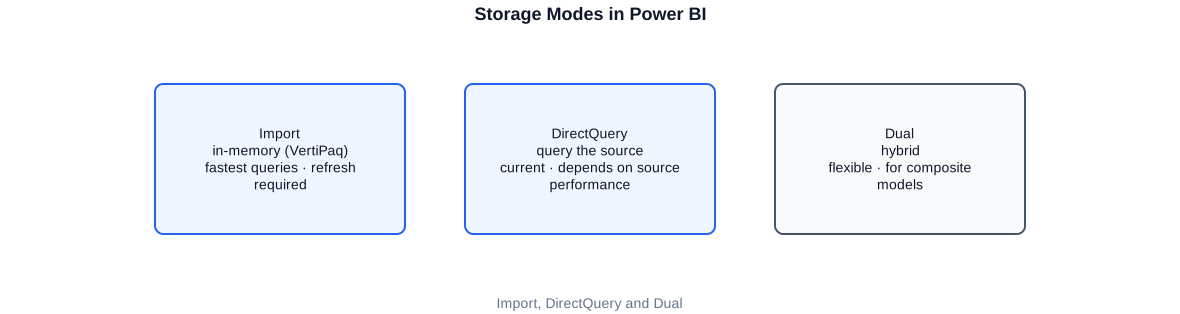
Comparison of the three storage modes in Power BI: Import holds data in memory, DirectQuery queries the source on every query, Composite combines both approaches.
Import mode: maximum performance
In Import mode data is fully loaded into the semantic model and held there by the VertiPaq engine in memory. Queries no longer go to the source but are answered directly in the model. The result is exceptionally high query performance, even with millions of rows, and full DAX support. The trade-off: data is only as current as the last refresh, and model size is limited by available memory.
DirectQuery mode: always current data
In DirectQuery mode queries are forwarded in real time to the source database. Every interaction with a visual generates SQL or native queries that are executed immediately. This guarantees always-current data without refresh operations – ideal for operational reports where freshness is critical. The downside: performance depends entirely on the source database, many DAX functions are restricted or unavailable, and calculated tables and columns from DAX are not possible.
Composite mode: the best of both worlds
Composite mode allows tables to be treated differently: dimension tables are held in Import mode (small, rarely changed, ideal for fast filters), while large fact tables remain in DirectQuery mode (always current, no size restriction). Query performance improves considerably compared to pure DirectQuery because dimension filters are resolved in the model and only the filtered fact queries go to the source. Aggregation tables in Import mode can answer queries on fact tables entirely in the model when the desired granularity is present.
- Import: maximum performance, full DAX support, data loaded by refresh
- DirectQuery: always-current data, no model size limit, restricted DAX functions
- Composite: dimensions in Import, facts via DirectQuery, aggregation tables as optimisation
- Dual mode: tables used in either import or direct-query mode depending on query context
- Aggregation tables in Import cover common granularity levels and accelerate DirectQuery
In practice, Import mode is the first choice for most analytical workloads: performance and DAX flexibility are unmatched. DirectQuery is suitable when freshness at minute intervals is required or when data volumes would exceed the model size limit. Composite mode is the answer to requirements that neither pure mode alone can fulfil – but it requires a deep understanding of the filter-flow mechanism to avoid building performance pitfalls.
Performance and model optimisation
A slow Power BI model frustrates users and undermines confidence in the data. Performance problems arise at three levels: in the data model itself, in the DAX measures, and in the report layer. All three levels must be kept in view, because a bottleneck at one level cannot be fully compensated by optimisations at the others.
Performance starts in the model
The VertiPaq engine compresses columns individually, based on their cardinality: a column with 10 distinct values compresses better than one with 10 million. High-cardinality columns – timestamps with second resolution, free text, GUIDs as keys – are therefore the typical model heavyweights. Solutions: reduce timestamps to day level when second resolution is not required. Use integer surrogate keys instead of GUIDs. Move free text from the fact table into dimensions.
Remove unnecessary columns and rows
The most sensible performance tool in Power BI is the Delete key. Every column that is not used in a report consumes memory and slows down the refresh. Power Query should be configured to load only the columns the model actually needs. Historical data that is never queried should be excluded via filter rows in Power Query. Incremental refresh reduces the volume of data that must be processed on every refresh.
Measuring DAX performance with the Performance Analyzer
The Performance Analyzer in Power BI Desktop shows for each visual how long the DAX query, the rendering time, and the database query take. Expensive measures can be further examined with the DAX Studio External Tool: Server Timings show how much time is spent in the Storage Engine and how much in the Formula Engine. Queries that run primarily in the Formula Engine are often a sign of iterator functions (SUMX, AVERAGEX, FILTER) iterating over large tables that should be optimised.
- Identify and reduce high-cardinality columns (e.g. timestamp -> date)
- Remove unneeded columns in Power Query before they enter the model
- Configure incremental refresh for large fact tables
- Integer surrogate keys instead of GUIDs or composite keys
- Avoid DAX iterators (SUMX, FILTER) on large tables or replace with aggregations
- Use Performance Analyzer and DAX Studio for systematic root-cause analysis
Particular attention is due to bidirectional relationships. Power BI allows relationships to filter in both directions – a feature that is tempting and opens performance traps. Bidirectional relationships can generate unintended filter interactions, make the model harder to understand, and significantly degrade performance on complex queries. The rule is: use bidirectional relationships only where they are genuinely necessary, and know the DAX alternative approach via CROSSFILTER.
Apps, workspaces, and deployment pipelines
Power BI is not an isolated tool but part of an ecosystem. Anyone managing multiple reports, multiple business departments, and multiple development stages needs well-thought-out governance: workspaces clearly structured by purpose, apps as the delivery channel to end users, deployment pipelines that transport changes safely from development to production, and a certification strategy that distinguishes between verified enterprise datasets and personal analyses.
Workspace structuring
Workspaces in Power BI are containers for semantic models, reports, and dashboards. A proven structure separates by function and environment: one workspace for development, one for test, and one for production. Additionally, separation by business department or domain is possible. Permissions are assigned at workspace level: who may edit reports, who may only view, who may edit the semantic model? This separation prevents accidental changes from reaching production.
Apps as the delivery channel
Power BI apps are curated collections of reports and dashboards delivered to a defined user group. Unlike direct workspace access, app users see only exactly what the app contains – no draft versions, no internal working files. Apps can be provided with permissions and a navigation structure that helps users find the right report. The app separates the delivery perspective (what should users see?) from the working perspective (how is it developed?).
Deployment pipelines
Deployment pipelines in Power BI enable a structured transition of reports and semantic models from one environment to the next. Changes are made in the development workspace, tested there, and then promoted via the pipeline into the test and finally the production environment. Rules for automatic parameter substitution – such as different database connections per environment – are configured in the pipeline. The result: no manual downloads and uploads, no forgotten connection strings, no accidental overwriting of production content.
Certification and endorsement
Power BI distinguishes between 'Promoted' and 'Certified' for semantic models and reports. Promoted content signals: 'This content is good enough for broad use.' Certified content is the highest trust level: it has been checked for correctness and quality by a designated body. This labelling helps users navigate the self-service BI landscape – and distinguishes reliable enterprise datasets from personal analytical experiments.
- Workspace separation by environment (Dev/Test/Prod) and optionally by business department
- Apps for delivery to end users – no direct workspace sharing
- Deployment pipelines for controlled transitions between environments
- Certification for organisation-wide, validated semantic models
- Dataflow concept: shared semantic models as the central source for multiple reports
- Lineage view in Power BI Service for traceability of data flows
In projects where I have built Power BI governance, the most common pain points were not technical but organisational in nature: every business department built its own semantic model, every model had its own revenue definition, and nobody knew which was the 'official' report. The remedy is a deliberate governance concept: who may create certified models, which datasets are the company standard, how changes are communicated and tested before going live.
Working approach
Every Power BI project begins with understanding, not technology. Before I set up a data model or write a measure, I form a clear picture of the business questions to be answered, the source data structures available, the users who will work with the reports, and the constraints arising from IT security, GDPR, or existing BI infrastructure.
- Business analysis: clarify KPIs, dimensions, permissions concept, and freshness requirements
- Data sources: assess data quality, source data structures, and suitable integration path
- Model design: design star schema, plan date table, choose storage mode
- DAX development: define base measures, build time intelligence, implement RLS
- Report development: design visuals, layouts, and navigation according to business needs
- Deployment and governance: workspace structure, apps, deployment pipelines, documentation
I work remotely, hybrid, and on-site, depending on project requirements. In many projects I am embedded in an existing team and bring specific expertise that is not available in the team – deep DAX knowledge, experience with SSAS Tabular, performance diagnosis, or RLS conception. In other projects I own the entire Power BI workstream from data modelling to governance.
An important aspect of my work is documentation. A semantic model that only its creator understands is a risk for the organisation. I document the model, the measures, the RLS concept, and the governance decisions in such a way that a successor team can maintain and extend the model independently. This includes descriptive measure comments, a glossary of business terms, and documentation of data sources and transformation steps.
Typical Power BI services
Depending on the project phase and requirements, I take on different tasks related to Power BI – from the initial architecture workshop to the finished, production-operated BI solution.
- Design and build of semantic models (star schema, date tables, relationships)
- DAX development: base measures, time intelligence, filter context, VAR/RETURN
- Row-Level-Security: dynamic RLS via permissions tables, hierarchical permissions
- Selection and configuration of storage mode (Import, DirectQuery, Composite)
- Performance analysis and model optimisation with Performance Analyzer and DAX Studio
- Apps, workspace governance, and deployment pipelines in Power BI Service
- Power Query transformations (M) and connection of data sources
- Integration with Azure data platforms: Synapse, Azure SQL, Databricks
- SSAS Tabular models as the basis for Power BI (Analysis Services Live Connection)
- Training and knowledge transfer for internal Power BI teams
In practice this frequently means: I take over an existing Power BI model that has grown organically and become hard to maintain, and bring it into a structured, comprehensible state. This includes cleaning up unnecessary calculated columns, consolidating redundant measures, rebuilding the date table concept, implementing a valid RLS, and introducing workspace governance. This 'clean-up' of an existing model is often faster and more valuable than building from scratch.
Alongside the purely technical work, alignment with business departments and IT is part of my approach. KPIs are only reliable when the business department agrees on the definition. RLS rules are only correct when the authorisation requirements have been genuinely understood. Deployment decisions presuppose that IT governance policies are known. All of this requires communication beyond technical boundaries – and a working style that engages both technical and business counterparts.
Complementing the Power BI work, I can also cover the upstream layers: data warehouses in SQL Server or Azure, ETL processes with SSIS or Azure Data Factory, SSAS Tabular models and staging layers. Those who know the full picture design the Power BI layer to match the data foundation – and spot early where a problem has its actual origin.
Selected anonymised reference projects
Loyalty / retail / clearing
Design and implementation of Power BI data models and dashboards for clearing processes in a loyalty environment with high data volumes. Implementation of dynamic Row-Level-Security for regional access control. GDPR-compliant anonymisation of personal data in reports and exports. Performance optimisation of data models and DAX queries.
Textile & service provider
Build-out of Power BI semantic models for the HR, Finance, and Controlling departments on the basis of Azure Synapse data sources. Development of reports and apps for structured delivery to end users. Connection of Databricks Delta tables as data source. Introduction of workspace governance and deployment pipelines for a controlled change process.
Engineering / consulting
Rebuild of a data warehouse with an SSAS Tabular model as the analytical layer. Development of complex DAX measures for Finance, Controlling, and HR analyses. Connection of Power BI to the SSAS Tabular model via Analysis Services Live Connection. Build-out of reporting structures for cross-departmental company analyses.
Frequently asked questions about Power BI consulting
Why is the data model more important than the report?
Reports come and go – a clean semantic model endures. Those who build the model correctly can create new reports in hours that deliver correct figures. Those who neglect the model build reports that appear correct individually but fail on new requirements or become too slow. The model is the contract with the business departments.
What distinguishes DAX from other formula languages?
DAX operates on the concept of filter context, not on row values like Excel formulas. A measure is always evaluated in the context of the current filter environment – through slicers, rows and columns in visuals, and through CALCULATE. Those who understand this concept write correct, performant measures. Those who ignore it write measures that work by coincidence.
When does DirectQuery make sense instead of Import?
DirectQuery is appropriate when data must be current at minute intervals, when the data volume would exceed the model size limit, or when regulatory reasons speak against copying data into Power BI. In most analytical scenarios, Import mode is the better choice: it offers full DAX support, maximum performance, and no dependency on source DB performance for every query.
How does Row-Level-Security work in practice?
RLS is defined as a DAX filter expression in a role. With dynamic RLS, an expression such as USERPRINCIPALNAME() accesses the user's identity and checks it against a permissions table. Each user then sees only the rows for which they are authorised – in every visual and in every exported dataset. The role must be assigned to the relevant users or Azure AD groups in Power BI Service.
Is Power BI also suitable for SSAS Tabular models?
Yes. Power BI can be connected directly to an SSAS Tabular model via an Analysis Services Live Connection. The model then lives not in Power BI but on the SSAS server – with the advantage that multiple Power BI reports can use the same central model, and changes to the model are immediately visible across all reports.
How can an existing Power BI model be optimised?
First, use the Performance Analyzer in Power BI Desktop and DAX Studio to identify the most expensive queries. Then address them systematically: reduce high-cardinality columns, remove unneeded columns, review bidirectional relationships for necessity, replace DAX iterators on large tables with aggregations. Incremental refresh shortens load times for large fact tables.
Can you also build the data sources for Power BI?
Yes. My background covers SQL Server, SSIS, Azure Data Factory, Synapse, and Databricks. I can cover the entire chain – from the source database through ETL pipelines and a data warehouse to the semantic model and the report. This end-to-end understanding is particularly valuable when problems in the reporting layer actually originate in the data foundation.
In which languages can we work together?
In German, English, and Portuguese – each fluently, including technical discussions about data models, DAX, and architectural decisions.


